
How to Enter a Background Check Order
This tutorial shows how to enter a background check order in your BCS Background Screening LLC account, step by step.
First, pick your interface below. Then, watch the silent walkthrough and follow the numbered steps under it.
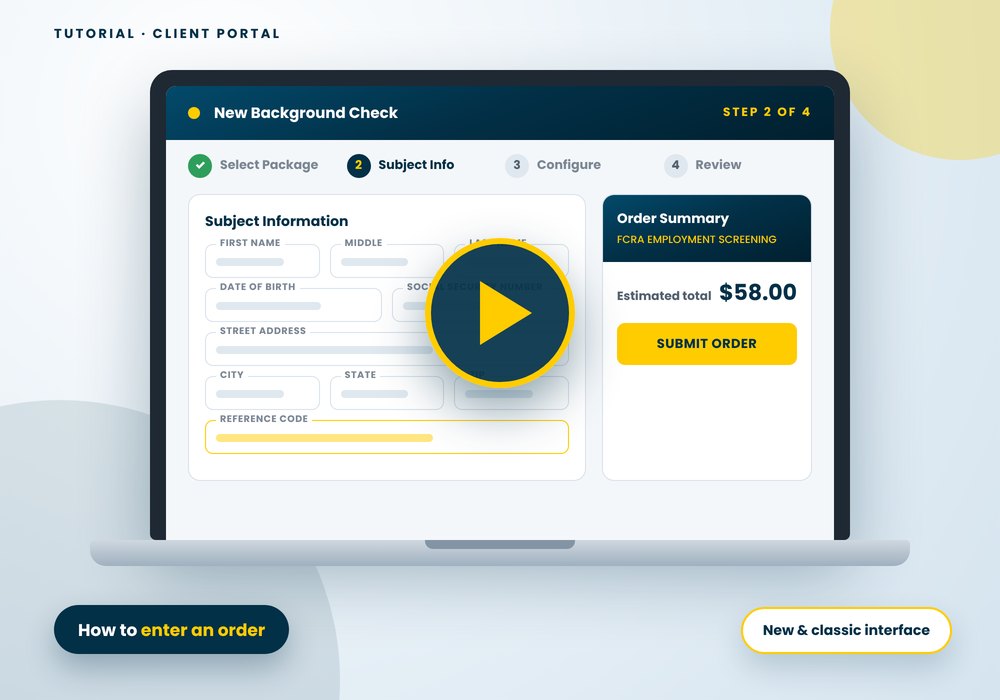
Sample data only: The walkthroughs use a demo account and a made-up applicant. Therefore, every name, address and number on screen is fictitious.
Before You Enter a Background Check Order
Three things make the order go faster. Moreover, the Fair Credit Reporting Act (FCRA) requires two of them.
1. Consent on file
The applicant must sign a stand-alone disclosure and a written authorization before you order. Specifically, you will certify this inside the order form.
Need the forms? Download the disclosure and authorization form, or let the applicant e-sign through an invite link.
2. Personal identifiers
You need the full name, date of birth, Social Security Number and current address. Additionally, prior addresses and other names widen the search.
Email and phone are optional. However, an email lets you send the applicant a copy of the report later.
3. A reference code
Reference fields are for your own use. For example, enter a store number, a position or a cost center.
Then, at month end, you can run a report by that reference for accounting or internal controls.
How to Enter an Order in the New Interface
The new interface opens on a Dashboard and walks you through four steps: Select Package, Subject Info, Configure and Review. The walkthrough below plays by itself; use the controls to pause or scrub.
Silent walkthrough, 15 steps, about 100 seconds. The same steps follow in text.
- 1
Open New Order
From the Dashboard, click New Order or New Background Check. The New Order menu can also send your applicant an invite link. The applicant then enters their own identifiers and e-signs the disclosure and consent.
- 2
Choose a search or package
Select an individual search or a screening package.
- 3
Select and continue
Click the package you want. The Order Summary shows the price. Then, click Continue.
- 4
Enter personal identifiers
Enter the name, date of birth and Social Security Number. Press Tab to move from one field to the next instead of using the mouse.
- 5
Email and phone (optional)
Email and phone are optional. However, enter them if you may want to email the applicant a copy later. They also help your own records.
- 6
Reference fields
Use the Reference fields for your own accounting or internal controls. At month end, you can run a report by reference.
- 7
Additional addresses
Tick “additional addresses” if you want the system to pre-populate searches for those jurisdictions. You can also add jurisdictions after we complete a report.
- 8
Other names
Tick “other names” if you want us to search additional names, such as aliases or a maiden name.
- 9
Report delivery
Choose whether to email the applicant a copy of the report automatically when it is complete. Alternatively, send it later, after you review it.
- 10
Consent on file (required)
Tick “Consent on File”. Uploading the signed form is optional. Use it if you want to keep the form in our free online filing cabinet.
- 11
Configure searches
The system has pre-populated the jurisdictions from the address you entered. You can still add more.
- 12
Add more searches
“Show More Searches” lets you add more searches to the package. Each one shows its price.
- 13
Final review
Review the order. Searches highlighted in green are ready to order.
- 14
Certify
Tick the Consent & Disclosure checkbox.
- 15
Submit
Click Submit Order. Otherwise, click Save as Draft to submit it another time.
How to Enter an Order in the Classic Interface
The classic interface opens on your Home Page with the Access Your Reports icons. Moreover, the How to Order box on the right repeats the steps below. Everything happens on one Order Report page.
Silent walkthrough, 12 steps, about 90 seconds. The same steps follow in text.
- 1
Open Order Report
From your Home Page, click the “Order Report” tab. The How to Order box on the right lists the same steps.
- 2
Create the applicant profile
Enter the last name, first name and middle name. Press Tab to move from one field to the next.
- 3
Address and date of birth
Enter the street address, city, state and ZIP code. Then, enter the date of birth (mm/dd/yyyy).
- 4
SSN, email and phone
Enter the Social Security Number. Email and phone are optional. Enter them if you may want to send the applicant a copy of the report later.
- 5
Additional names and addresses
Click “Additional Names to Search” or “Additional Addresses to Search” to add aliases or prior addresses. Uploading documents is optional.
- 6
Delivery and reference
Tick the Alternative Results Delivery box to send a copy of the report to a third party. Use the reference field for your own accounting or internal controls.
- 7
Select searches
Under Criteria: Select Searches, open the drop-down. Choose a package or an individual search, then click SELECT.
- 8
Check each search
The page reloads and the price appears. A green check means the search is ready. A red alert means it needs more information, so click the red search name.
- 9
Fill in the county
For the County Criminal Court Search, confirm the state and county and choose the years to search. Then, click SAVE SELECTION. The court fee adds to the total.
- 10
All green
All searches now show a green check, and the total price updates.
- 11
Add more searches
Click “Show More Searches” to add individual searches to the package.
- 12
Place the order
Click the green ORDER button at the top right. Otherwise, click SAVE AS DRAFT to finish it later.
What Happens After You Submit the Order
In Progress
The order appears under In Progress on your Dashboard. Each search runs on its own schedule. For example, database searches return in minutes, while county court searches take longer.
Needs Attention
Sometimes a search needs more from you, such as a county or a prior name. Then, the order shows under Needs Attention. Open it, add the detail, and the search continues.
Completed
When every search returns, the report moves to Completed. Afterward, you can email a copy to the applicant or add more searches. If the report raises a concern, start the adverse action process.
Frequently Asked Questions About Entering an Order
Which interface do I have, the new one or the classic one?
Look at your home screen after you log in. The new interface shows a Dashboard with a New Background Check button and a four-step order form. In contrast, the classic interface shows a Home Page with the Access Your Reports icons and an Order Report tab.
Classic users see a “Preview The New Site” button at the top of the page. Both interfaces reach the same account and the same reports.
What information do I need before I enter an order?
You need the applicant’s full name, date of birth, Social Security Number and current address. Additionally, you need the signed disclosure and authorization on file. Email, phone, prior addresses and other names are optional. However, they improve the search.
Do I have to upload the signed consent form?
No. You must certify that the disclosure and written authorization are on file. Uploading the form is optional. Many clients upload it anyway, because our online filing cabinet stores it with the order at no charge.
Can I save an order and finish it later?
Yes. Click Save as Draft at any point. The order waits in your drafts until you submit it. Furthermore, the price shown in the Order Summary is an estimate. Some counties add court fees when you configure the searches.
What happens after I click Submit Order?
The order moves to In Progress on your Dashboard. Then, each search runs in turn, and the report moves to Completed when every search returns. Searches that need more information from you appear under Needs Attention. You can add jurisdictions or searches to a completed report at any time.
Ready to Enter Your First Order?
Log in to your account and follow the steps above. New to BCS Background Screening LLC? Open a free account in minutes, then pay only for the searches you order.
All user accounts offer optional Multiple Authentication Factor (MAF) security.
Note: Screens and prices shown come from a demo account in October 2026. Your packages, prices and menu names depend on your account setup. Package prices exclude court and state fees.